Import Templates
Import template for categories
Category import makes it possible to create or update categories.
Key features
- Create or update categories via import
- Set parent category, language, active state, and meta fields
Quick guide
- Go to the Import Tool in the menu and click New.
- In the Template type dropdown, select Category.
- Click Download file template.
Download the import template by going to the Import Tool in the menu, clicking New, choosing Category in the Template type dropdown, and clicking Download file template.
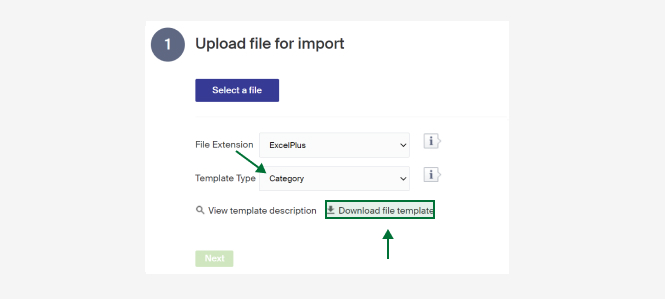
A description of the columns follows. There is also a short description in Merchant Center under View template description.
| Column | Description |
|---|---|
| Id | The category's Id in the system. If set to 0, a new category is created. If empty, an existing category is updated when a match is found on the name, otherwise a new one is created. |
| Name | Name of the category. Mandatory. Include the name if the category exists: if the Id is present but the Name is left empty, the existing name is cleared. |
| Description | The category's description. Applies to the Description 1 field on the category. |
| ParentId | Id of the parent category. If filled in, the category is placed as a sub-category. If empty, it is imported at the highest level. |
| Parent | Name of the parent category. If filled in, the category is placed as a sub-category. If empty, it is imported at the highest level. |
| Language Id | Language Id (default 1, Swedish). Used in translations. |
| Active | Whether the category is active. 1 for active, 0 for inactive (default 1, active). If left empty, set as active. |
| MetaTitle | Meta title for the category. |
| MetaDescription | Meta description for the category. |
| MetaKeywords | Meta keywords for the category. |
Import parameters
Apply parameters and parameter values to products via the import tool. Requires that parameter groups and their parameters are created first.
Import template for GoogleTaxonomy
Match your categories to Google Taxonomy, the categories Google uses to distribute products in a shopping flow.